How to Fill Out Your Childcare Listing
Your listing is what a family reads before they decide whether to call you. This is a walk through every section of the form, in the order it appears, with a note on the two parts you can only add once the listing is saved.
Set aside about fifteen minutes. It helps to have your phone number, address, hours, and a few photos of your space ready before you start.
Start a listing
From your dashboard, open My listings and choose New listing. If you created a listing before you had an account, it is already here waiting for you.
Basics
Your name, the type of care you offer, and how families reach you.
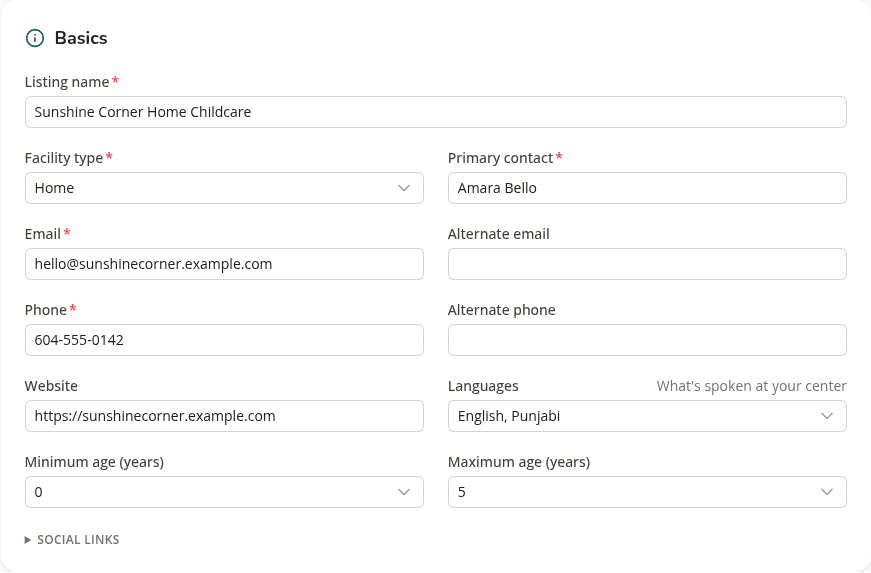
A few of these do more work than they look like they do. Facility type is one of the filters families use, so pick the one that matches how you actually operate: home, centre, daycare, school, or group family child care. Languages is a filter too, and it is also one of the four things families can set on their weekly openings email, so list every language spoken in your space rather than just the main one.
The email here is where inquiries go. It does not have to be the address you log in with, and it is worth reading twice, because a typo means applications arrive nowhere.
Location
Your street address, city, province, and postal code.
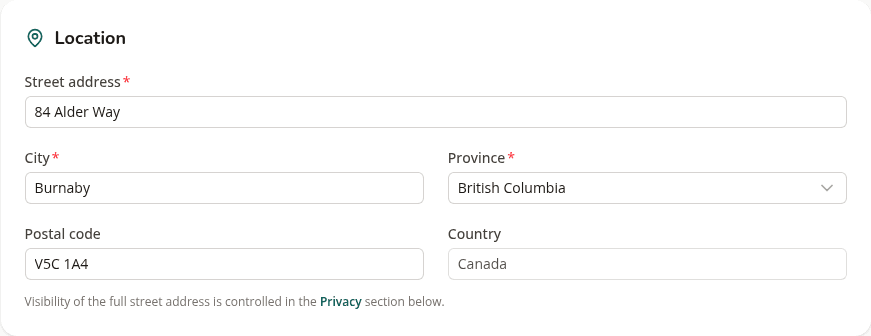
Fill in the full address even if you would rather not show it publicly. You control what families see in the Privacy section further down, and the address is what places you in the right city searches either way.
Hours
Your open and close time for each day.
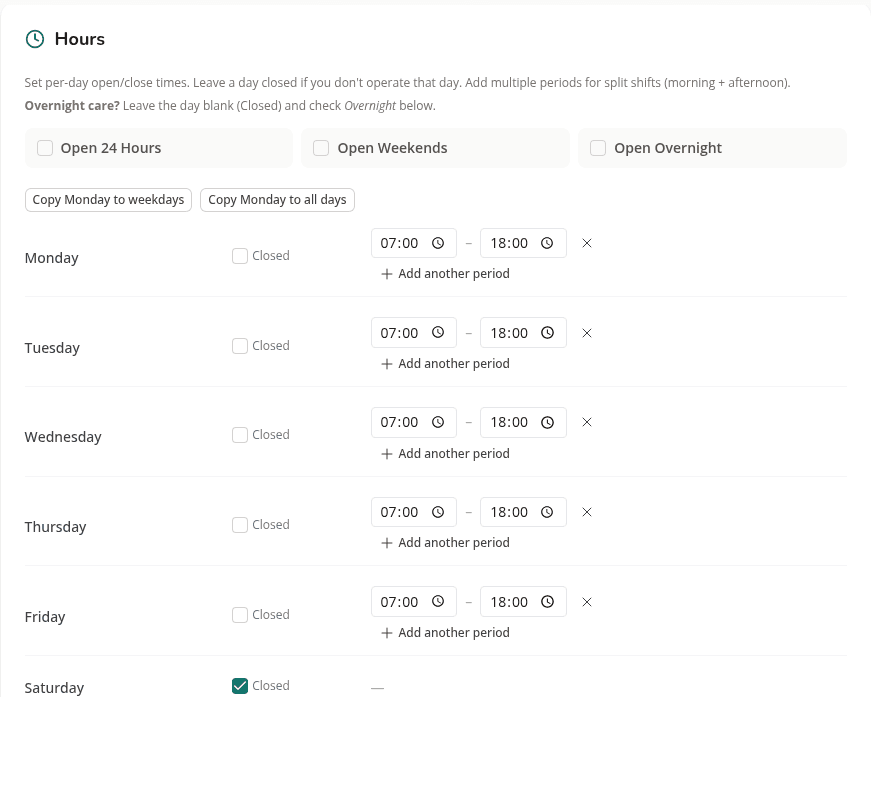
Leave a day closed if you do not operate it. If you run split shifts, add a second period to the day rather than stretching one period across the gap. There are toggles above for round-the-clock, weekend, and overnight care.
Ages and capacity
Which age groups you take, and how many of each.
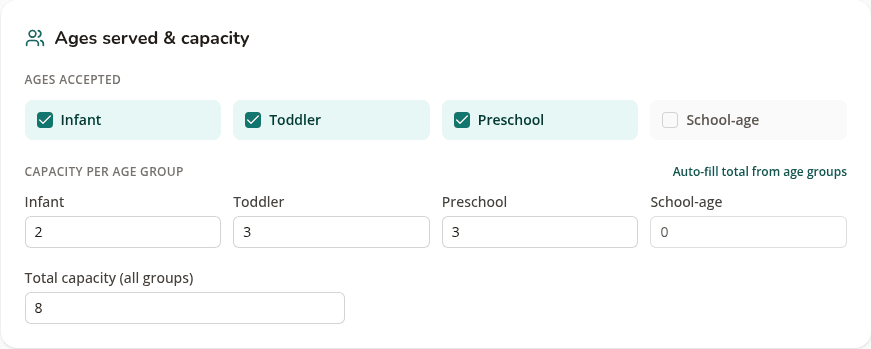
Families filter by age before they read anything else, so an empty age range means you will not appear for the parent who wanted exactly what you offer. Filling in the numbers per group also lets a parent see at a glance whether you have room for their child's age rather than guessing from a total.
Credentials
Licensing, funding programs, and staff training.
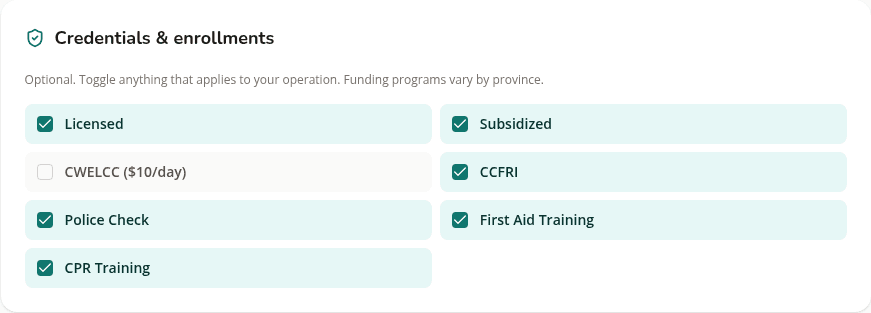
All of this is optional and none of it is a requirement to list. Funding programs differ by province, so tick only what applies where you are. Nothing here is marked as missing if you leave it blank.
Amenities
Outdoor space, meals, snacks, and the details families ask about on a first call.
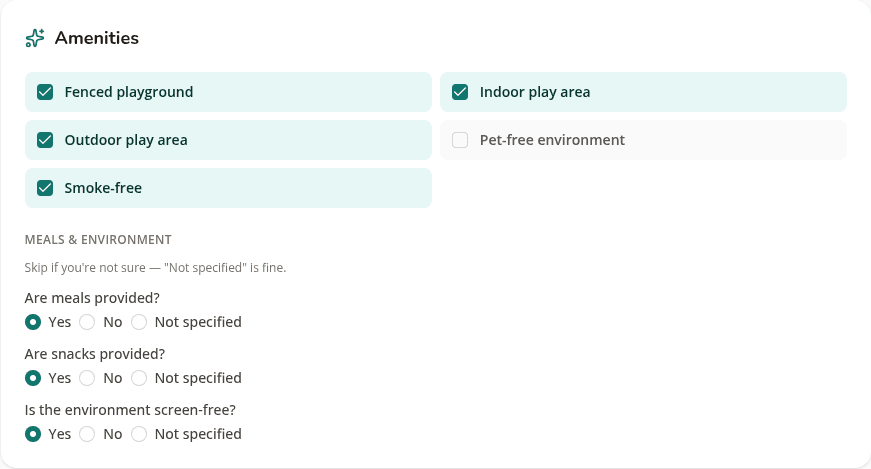
Answering these saves you repeating yourself. Smoke-free and pet-free in particular come up on almost every enquiry, and a parent whose child has an allergy will look for them before they call.
Description
The part in your own words.
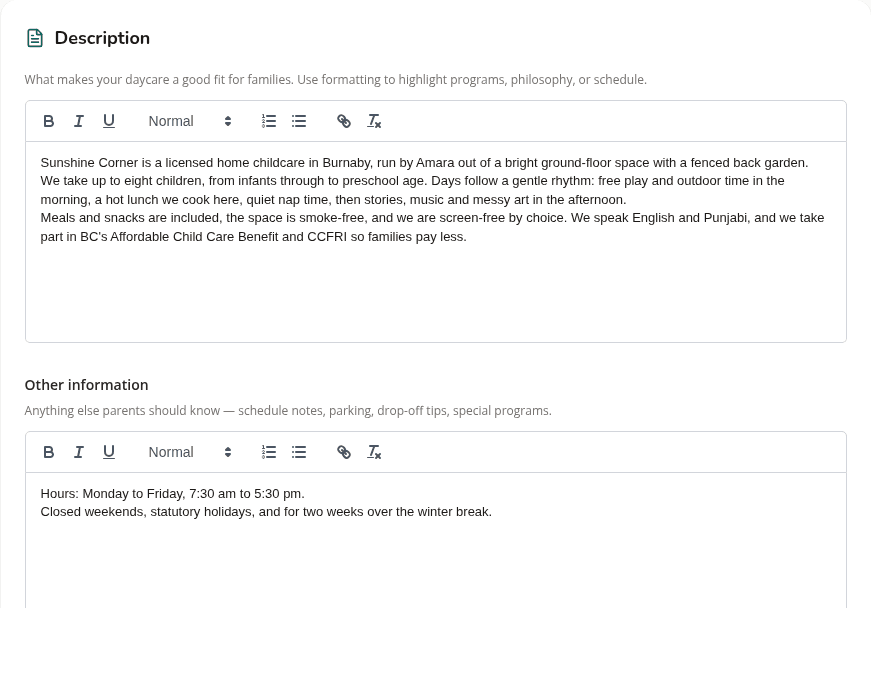
Write it the way you would explain your day to a parent standing at your door. What the routine looks like, what you cook, how you handle naps, what you enjoy about the age group you take. A few honest paragraphs do more here than a polished summary.
Privacy
What of your contact details appears publicly.
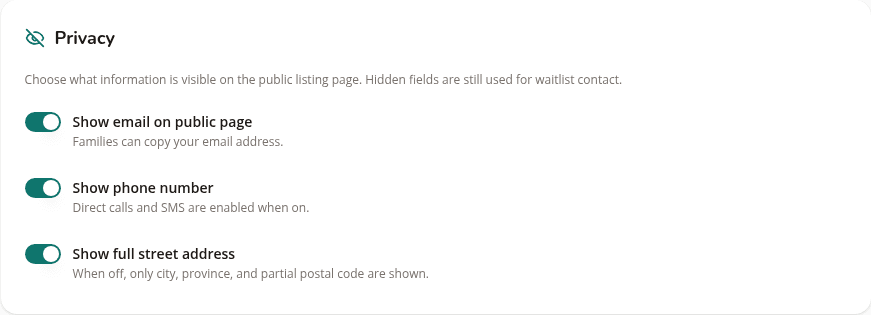
You can hide your email, your phone number, or your street address. With the address hidden, families see your city and the first part of your postal code, which is enough to work out whether you are on their route.
One thing to watch: if you hide both your phone number and your email and you have no waitlist, a family who wants you has no way to reach you. Leave at least one route open.
Save, then add the rest
Photos, waitlists, and openings can only be added after the listing is saved. They are not on the form when you first create it. Save what you have, reopen the listing from your dashboard, and the extra sections are there.
This trips people up, and it is worth knowing before you conclude that something is broken.
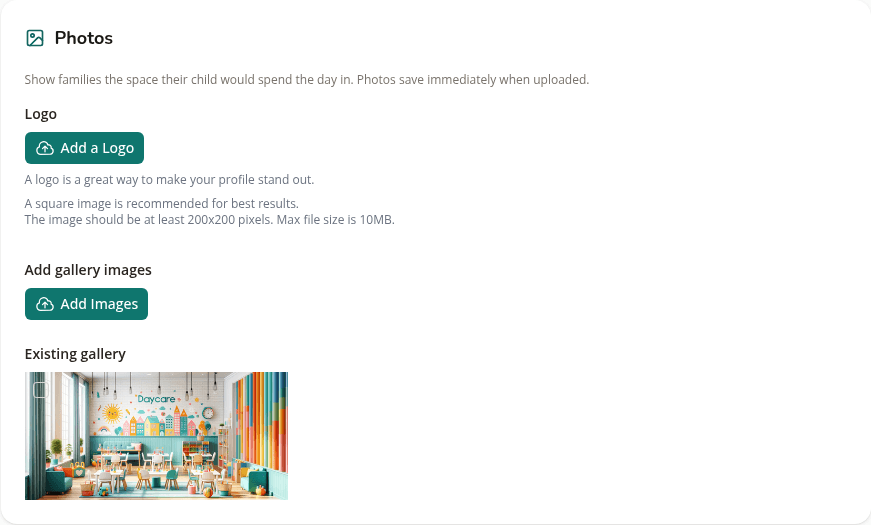
Photos. Three or four honest pictures of the play area, the nap space and the yard will do more than any paragraph you write.
Waitlists and openings. An opening is a spot you have available: the date it frees up, how many spaces, and the ages it suits. A waitlist is the queue families join when you have nothing free yet.
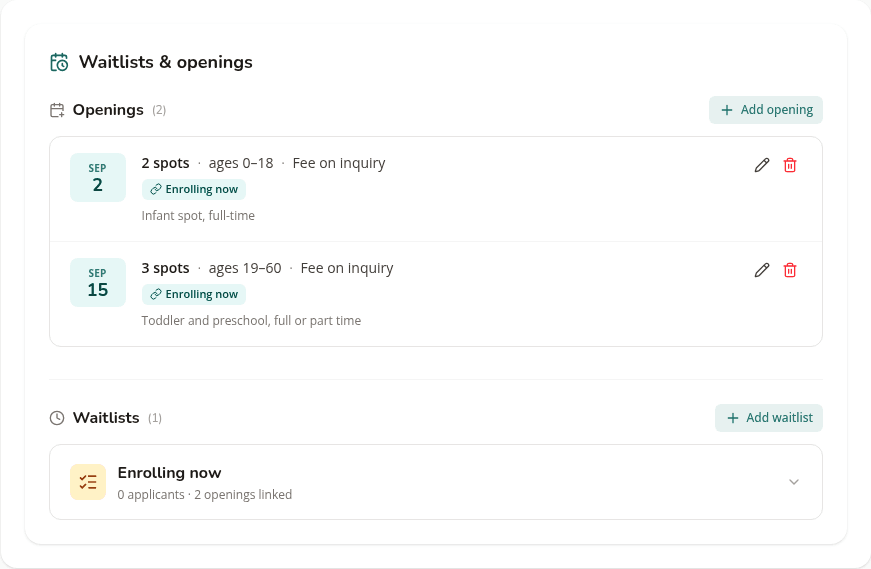
Post your openings even if you think families will simply call. Every Saturday morning we email families the spots opening up over the next month, and only listings with an opening posted are included. There is more on this in our guide to how families find your listing.
The waitlist is also the only way a family can send you their details through the site. Without one, they can only phone or email.
Publish
Filling in your listing and publishing it are two separate steps. Set the status to published from your dashboard, and that is the moment families start finding you in search.
An unpublished listing does not appear anywhere public, so if you have finished the form and cannot find yourself on the site, check this first.
What families see
Here is the finished listing as a parent finds it.
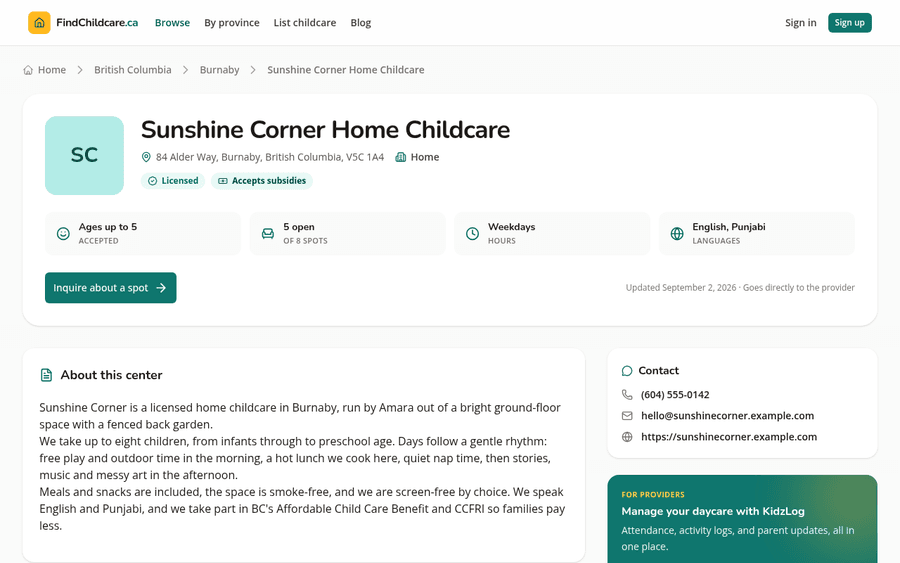
You can come back and change any of it at any time, and keeping it current also helps your position in search results. If you want a second opinion, browse the directory and look at your listing beside the others in your area.
List your daycare on FindChildcare.ca — for free
Parents are searching. Get found, manage openings, and run your waitlist — all in one place, no charge.
Create your free listing